ACC/ACF 1100 Introduction to Financial Accounting Project Part Two
Hello, dear friend, you can consult us at any time if you have any questions, add WeChat: daixieit
ACC/ACF 1100
Introduction to Financial Accounting
Project Part Two
Al tools may be used to aid with the completion of the task, but the work submitted must be the original thought and the effort of the student. Students need to detail their AI use in the process.
Due Date: Friday 19 September 2025 at 11:55pm (week 8)
Value: 10%
Purpose: This task builds on Project Part One by requiring you to prepare financial statements in MYOB. It shows how technology supports the preparation process while giving you hands-on experience with accounting software and the recording cycle.
Submission: Uploaded via Moodle. Upload via Moodle – submit 3 PDF files (MYOB component) and 1 Word document (Written component).
Components: A practical (MYOB) component, and a written response.
Data Sheet: The datasheet is the same as for Project Part One. It is assigned based on the last digit of your student ID.
If the last digit of your student ID number is 0, use Assignment #0.
If the last digit of your student ID number is 1, use Assignment #1.
If the last digit of your student ID number is 2, use Assignment #2.
If the last digit of your student ID number is 3, use Assignment #3.
If the last digit of your student ID number is 4, use Assignment #4.
If the last digit of your student ID number is 5, use Assignment #5.
If the last digit of your student ID number is 6, use Assignment #6.
If the last digit of your student ID number is 7, use Assignment #7.
If the last digit of your student ID number is 8, use Assignment #8.
If the last digit of your student ID number is 9, use Assignment #9.
MYOB Component: Save as each final report as PDF
You are required to prepare financial statements in MYOB based on the data set provided.
· A PowerPoint for MYOB is available on Moodle and is referenced throughout this task.
· Your data set is the same one you used in Project Part One.
The purpose of this task is to extend your learning from Project Part One, where financial statements were prepared manually. In Project Part Two, you will complete the same process using MYOB software. This task also enables you to compare manual preparation with software-based preparation, highlighting how technology enhances accuracy, efficiency, and the overall recording process.
Please follow the detailed instructions carefully.
Step 1: Create an account with MYOB (Slides 3–9, MYOB Guide)
Set up a new account in MYOB using your full name and student ID (Slide5) as the business name. This ensures that your details appear on every report you generate and submit.
Step 2: Set up your chart of accounts (Slides 11–25, MYOB Guide)
You now need to enter all the journals from Part One (including adjusting entries) into MYOB.
· Each journal has a date and at least two ledger accounts.
· In MYOB, you do not type the account name directly. Instead, you use a 5-digit account number.
o Example: Accounts Receivable → 1-2000
o Bank or Cash Account → 1-1110
· The goal in this step is to identify the MYOB account numbers you will need.
· Use your adjusted trial balance from Part One for the account names, then add or edit the MYOB chart of accounts to complete the No. column in your trial balance (see below).
· This ensures you have the correct account numbers when entering transactions into MYOB.
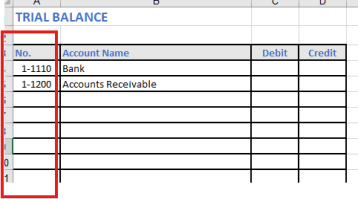
Step 3: Entering transactions in MYOB (Slides 26–45, MYOB Guide)
In your assignment, there are five types of transactions. Each must be entered using the correct MYOB function. One part of your submission is marked on whether you used the correct functions, so follow the MYOB Guide carefully:
· Cash Payments → record money paid out (other than to Accounts Payable)
· Cash Receipts → record money received (other than from Accounts Receivable)
· Credit Sales Cycle → record sales made on credit and receipts from Accounts Receivable
· Credit Purchase Cycle → record purchases made on credit and payments to Accounts Payable
· General Journal → only record initial and adjusting entries
Step 4: Edit transactions in MYOB (Slides 46-49, MYOB Guide)
After entering your transactions, you can print a Trial Balance or Profit & Loss (or view them on screen) to check how your numbers look.
Common Errors to Watch For:
· Wrong date → transaction dated outside the June 2025 reporting period
· Duplicate journal entry
· Typing errors → missing a “5” or adding an extra “0”
· Using the wrong ledger account
You can fix these errors by editing or deleting the transaction.
Step 5: Print Reports in MYOB (Slides 50-53, MYOB Guide)
You need to submit the following reports from MYOB (Print and save as PDF before submitting):
1. Profit and Loss for the month ended 30 June 2025
2. Balance Sheet as at 30 June 2025
3. Journal entries for the month ended 30 June 2025
Written Component: Submit as a Word document (max 220 words, ±10%)
AI tools can summarise complex information into plain language.
1. Paste your June 2025 Profit and Loss into an AI tool and ask it to:
“Explain these results to someone with no accounting knowledge.”
2. In your own words, summarise the AI’s main explanation in one paragraph not exceeding 110 (±10%) words.
3. Reflect: Was the AI’s explanation clearer than your own accounting interpretation? Explain why or why not in one paragraph not exceeding 110 (±10%) words.
Marking criteria MYOB Component:
|
Rubric |
Marks |
|
Correct business title used consistently |
1 |
|
Correct date span for all transactions à 1 June to 30, 2025 |
1 |
|
Use of Cash Payments function correctly (for cash purchases other than A/P) |
5 |
|
Use of Cash Receipts function correctly (for cash received other than A/R) |
5 |
|
Use of Credit Sales Cycle correctly (sales on account + cash received from A/R) |
8 |
|
Use of Credit Purchase Cycle correctly (purchases on account + payment to A/P) |
8 |
|
Use of General Journal for initial & adjusting entries |
6 |
|
Profit & Loss statement |
8 |
|
Balance Sheet |
8 |
|
|
|
|
Total Marks |
50 |
Marking criteria Written Component:
|
Rubric |
Marks |
|
Summary of AI Explanation |
4 |
|
Reflection on clarity |
5 |
|
Word limit |
1 |
|
|
|
|
Total Marks |
10 |
2025-09-18